

Gander
Gander is the Soulstack Discord bot. Configure it per server from Community Studio for AI conversations, moderation, levelling, economy, and a full suite of community tools.
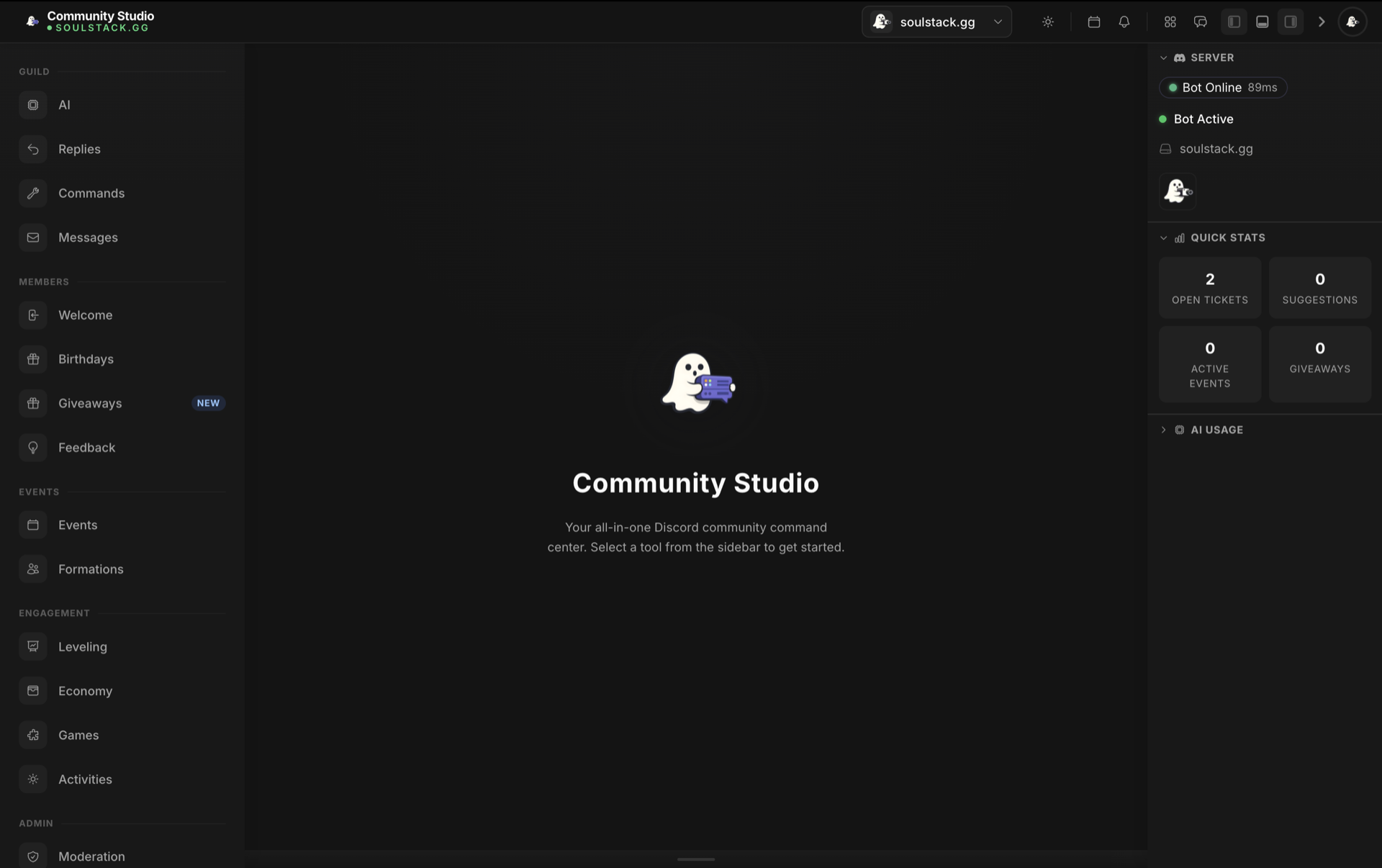
Core Features
AI Conversations
Gander engages with members in chat using a configurable personality. Tone, verbosity, interests, and emoji use all adapt to your server.
Customisable Personality
Pick a tone (Friendly, Professional, Helpful, Sarcastic, or Argumentative), set response length, and define topics Gander engages with or avoids.
Moderation Tools
Keep your server safe with warnings, configurable mute roles, warning thresholds, and automatic mute durations for repeat offenders.
Levelling System
Reward active members with XP, level roles, and progress tracking that encourages participation.
Economy System
Run a server economy with custom currency, member balances, activity rewards, and spending options across games and activities.
Multi-Server Support
Manage Gander across every Discord server you run from Community Studio. Invite, activate, deactivate, or remove servers with individual configuration for each.
Additional Features
Welcome Messages
Greet new members automatically with customisable welcome text and a configurable welcome channel.
Reaction Roles
Let members self-assign roles by clicking buttons on embedded panels. Useful for notification preferences and interest groups.
Birthday Tracking
Celebrate member birthdays automatically with announcements and an optional birthday role.
Sticky Messages
Keep important messages pinned at the bottom of channels for rules, announcements, and reminders.
Scheduled Messages
Plan messages in advance with flexible scheduling for announcements, reminders, and recurring content.
Auto Responses
Set up automatic replies to specific triggers or keywords for FAQs and common questions.
Server Logging
Track server activity with logging of messages, joins, leaves, and moderation actions.
Voice Roles
Automatically assign roles when members join voice channels for better organisation.
Suggestions
Collect community feedback with a dedicated suggestion system including voting and status tracking.
Support Tickets
Manage member support requests with a ticket system for organised one-on-one assistance.
Utility Commands
Access helpful server utilities including user info, server stats, and administrative tools.