
Stream StudioStream Studio

Stream Studio

The Twitch hub for Chat Bot, Quest, Pond Party, automation, rewards, and stream-facing control panels.

Updated Jul 2026 6 min read
Stream Studio

Stream Studio

The unified streaming hub for Chat Bot, Quest, and Pond Party. Run live chat, automation, games, rewards, and stream controls from one creator workspace.
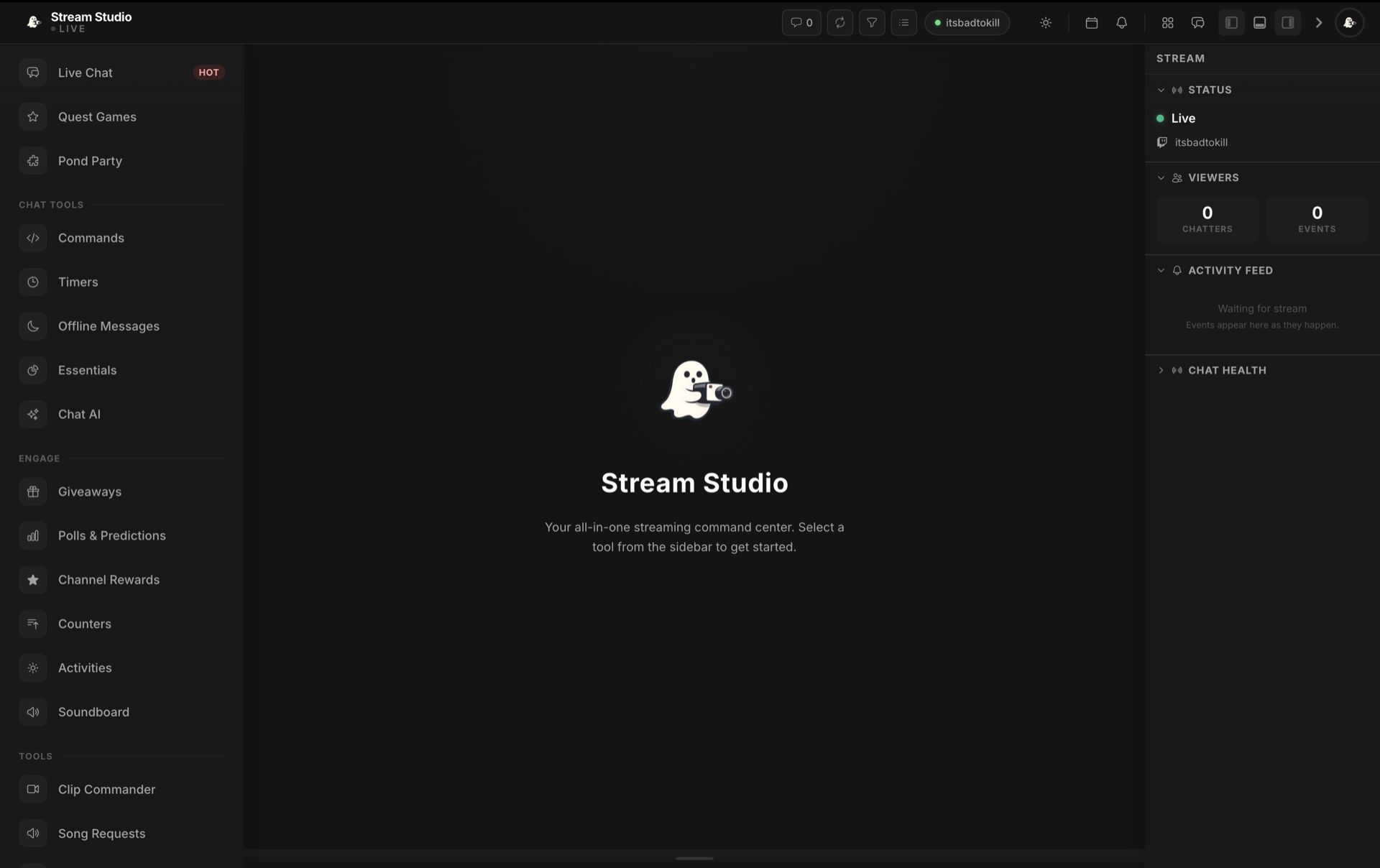
Stream Studio workspace with live chat, products and Twitch status
Stream Studio brings every Twitch tool together in one workspace.

What Stream Studio Includes

Stream Studio is the main Twitch workspace in Soulstack. It combines chat tools, Quest games, and live stream controls under one navigation system.

Live Chat

Monitor Twitch chat in real time and keep quick access to your Chat Bot tools while you stream.

Quest Games

Run every Quest variant (Quest, Crow Quest, Capybara Quest, and Axolotl Quest) from the same game surface.

Pond Party

Launch multiplayer stream games and manage live sessions without leaving the studio workspace.

Automation Tools

Configure commands, timers, offline messages, AI tools, giveaways, counters, and activities from one place.

Engagement Controls

Create polls, predictions, and channel rewards to drive viewer participation during live streams.

Soundboard and Settings

Add browser-source audio playback, tune chat presentation, and manage stream-facing behaviour from the settings panels.

Getting Started

Open Stream Studio from the creator console, then enable the products you want to use in your stream workflow.
1

Open the Creator Console

Go to creator.soulstack.gg and open Stream Studio from your product navigation.
2

Enable Required Products

Turn on Chat Bot, Quest, or Pond Party depending on the features you plan to use.
3

Navigate the Sidebar

Use the left sidebar to jump between live chat, games, rewards, polls, soundboard, and settings.
4

Configure Stream Tools

Finish setup for the features you need before going live, then keep Stream Studio open as your main control surface.