

Configuration Guide
Detailed setup instructions for every Soulstack product, from one console.
Product-specific configuration
Each Soulstack product has its own focused docs. Start with the product you want to enable, then follow the dedicated guide for that workspace.
Stream Studio
Run Live Chat, Quest, and (soon) Pond Party from one Twitch workspace inside the Creator Console.
View Stream Studio DocsCommunity Studio
Bring Community Studio to your Discord server for AI-powered conversations, moderation, and games. You need server admin permissions to invite the Gander bot.
View Community Studio DocsSlate
Set up collaborative drawing for your community. Embed it as a stream overlay or share a standalone link.
View Slate DocsSecurity and permissions
- Sign in with Twitch or Discord, so your password stays with them
- Soulstack never sees or stores your platform password
- You can revoke access at any time from Twitch or Discord
- Each product requests only the permissions it needs
Common requirements
- An active Soulstack account
- A verified email address
- A Twitch or Discord account
- The right permissions on your channel or server
Ready to configure?
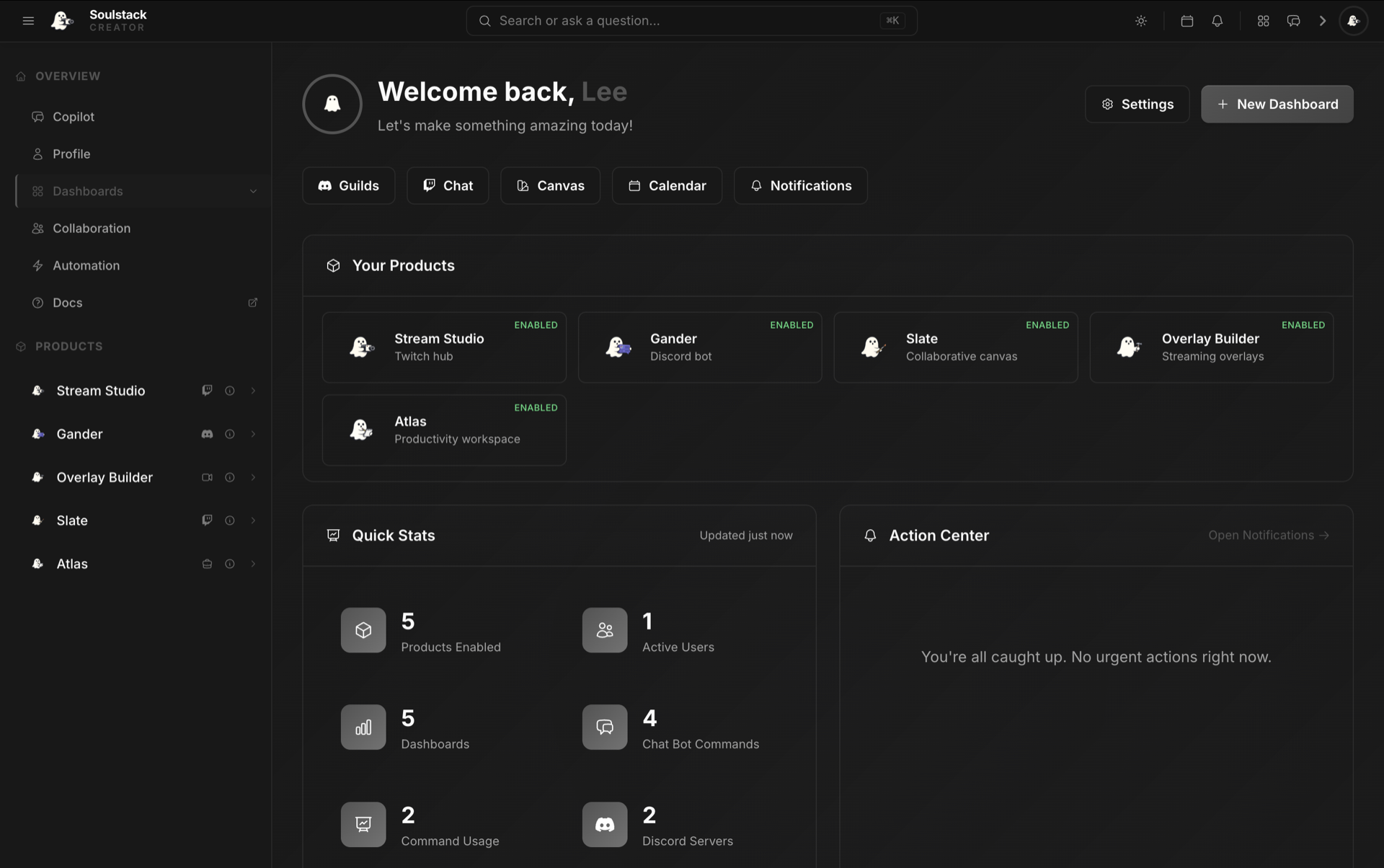
Open the Creator Console to set up your products. A guided flow walks you through each one.
Open Console