

Moderation and Personality
Shape Gander's character and keep your server safe. Configure tone, interests, and boundaries alongside warnings and mute rules from Community Studio.
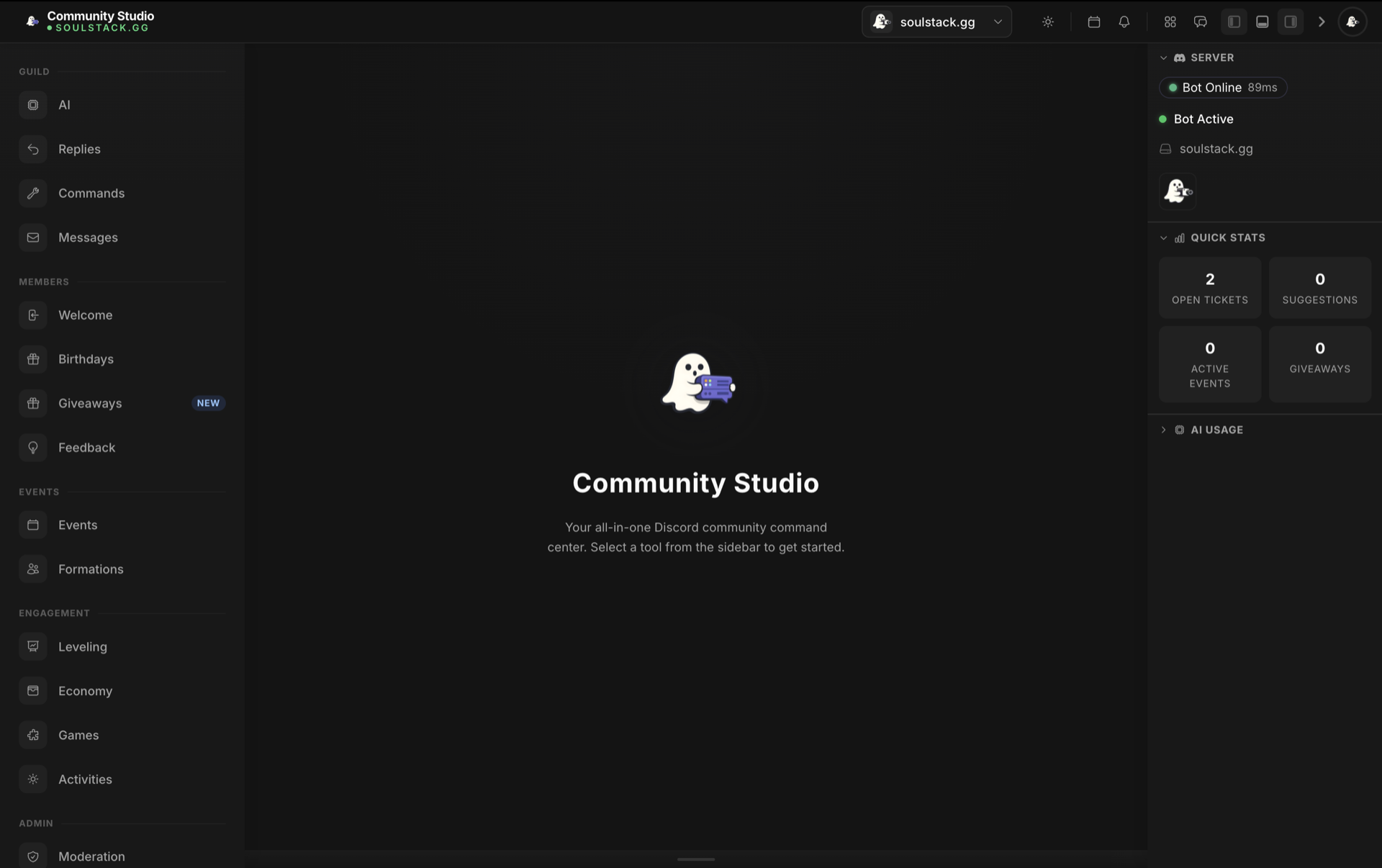
Personality Controls
Tone Selection
Choose from five tones to match your server's atmosphere: Professional, Friendly, Sarcastic, Argumentative, or Helpful. Tone affects word choice, structure, and attitude.
Response Length
Pick Brief, Concise, or Chatty replies. Concise is the default recommendation and keeps Gander from dominating chat.
Interests
List topics Gander knows about. Conversations on those subjects get more detailed, enthusiastic replies (gaming, tech, programming, memes, Discord culture).
Topics to Avoid
Set boundaries by listing subjects Gander declines to discuss. Common exclusions: politics, religion, personal finance, medical advice.
Emoji Configuration
Standard Emoji
Enable or disable Unicode emoji in responses. Useful when a community is more casual or more formal than the default.
Server Emoji
Add a list of server emoji codes (for example :custom_emoji:) and Gander will use them when appropriate. Make sure the bot has permission to use external emoji.
Moderation Tools
Warning System
Issue warnings to members and track totals over time. Set a maximum warning threshold before automatic action triggers.
Mute Role
Pick a Discord role to apply when members hit the warning threshold. Set the default mute duration to match your server policy.
Action Log
Review moderation history per member, including warnings issued and mute durations applied, from Community Studio.
Recommendations
Defaults That Work
- Start with Friendly tone and Concise responses.
- Add five to ten interests relevant to your community.
- Always set topics to avoid before going live.
- Enable standard emoji for more engaging replies.
- Test changes in a private channel first.
Tips by Community
- Gaming: Friendly or Sarcastic tone.
- Professional: Professional tone, emoji off.
- Creative: Chatty responses with emoji on.
- Support: Helpful tone, Concise responses.
- Casual: Friendly tone, everything on.